Programmatically Changing Windows Mouse Cursors

Search

My blog feed

Programmatically Changing Windows Mouse Cursors

Published Thursday August 16, 2007

Introduction

Windows' Mouse Control Panel Applet

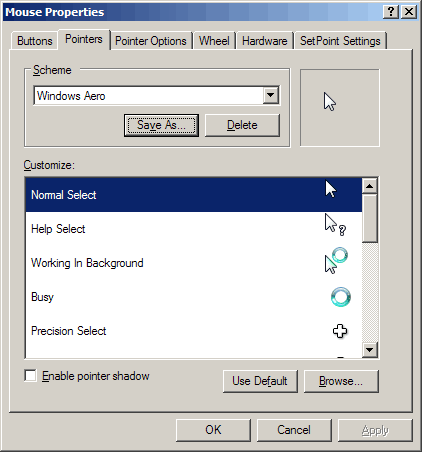
I really like the new Windows Vista mouse cursors, so much that I have switched all my computers, including the ones running Windows XP, to use them. They are awesome until you have to Remote Desktop to the computer, when, depending on your connection speed, the cursors can really slow down the mouse movement. This presented a challenge because not only did I not want to go through the control panel applet to change it back to the Windows Default scheme but also because changing cursors would be painstakingly slow due to the slow mouse movement. So, off I went to figure out how I could automate this.

I have not been able to find any good articles on the internet that explain how you can change cursors. This especially becomes a challenge if you have to change the cursors back to the “Windows Default” scheme, which is what I had to do. This article gives you an overview of how the cursors are organized and how you can go about applying cursors schemes.

Considering that I now use AutoHotkey for most of my shortcuts and automation, it made sense that this would be just another AHK script. Therefore, this article shows everything in the AHK syntax but don’t worry because it is not much different than most of the other languages.

Run-down

There are two main steps that you have to do.

  1. Update the strings listed in
    HKEY_CURRENT_USER\Control Panel\Cursors
    with the locations of the cursors that you want to use.
    1. You can lookup the defined cursor schemes from either
      HKEY_CURRENT_USER\Control Panel\Cursors\Schemes
      or
      HKEY_LOCAL_MACHINE\SOFTWARE\Microsoft\Windows\CurrentVersion\Control Panel\Cursors\Schemes
  2. Call SystemParametersInfo with
    SPI_SETCURSORS
    as the
    uiAction

Details

There are three main registry keys that come into play.

  1. The registry key
    HKEY_CURRENT_USER\Control Panel\Cursors
    contains the active user cursors
    • The values underneath this are the different types of cursors
    • The
      Scheme Source
      specifies the type of cursor scheme that is currently being used. I haven’t been able to figure out the purpose of this but I have figured out what the different values are.
      • 0 – Windows Default
      • 1 – User Scheme
      • 2 – System Scheme
  2. The registry key
    HKEY_CURRENT_USER\Control Panel\Cursors
    contains the user defined cursor schemes (i.e.
    Scheme Source = 1
    )
  3. The registry key
    HKEY_LOCAL_MACHINE\SOFTWARE\Microsoft\Windows\CurrentVersion\Control Panel\Schemes
    contains the system cursor schemes (i.e.
    Scheme Source = 2
    )

The cursor schemes contain the path to the cursors for the different cursor types as a comma delimited list. Below are the individual pieces.

These names are as they would appear in the

HKCU\Control Panel\Cursors
. If you are a curious one you would have already changed the path to one of the cursor type in
HKCU\Control Panel\Cursors
and realized that it did not do anything. You are correct, just updating a key –
HKCU\Control Panel\Cursors\Arrow
, for instance – isn’t enough. You have to tell windows to load the new cursor.

This is where the SystemParametersInfo call comes in. To try this out let’s go ahead and change

HKCU\Control Panel\Cursors\Arrow
to
C:\WINDOWS\Cursors\appstar3.ani
(assuming you have this icon) and then make a call to
SystemParametersInfo
.

SPI_SETCURSORS := 0x57
result := DllCall("SystemParametersInfo", "UInt", SPI_SETCURSORS, "UInt", 0, "UInt", 0, "UInt", '0')
MsgBox Error Level: %ErrorLevel% `nLast error: %A_LastError%`nresult: %result%

If everything worked then you should see the 3D animating cursor as your default arrow and the following message box.

A Successful Call to SystemParametersInfo

Changing to the Default Windows Cursor

Now the tricky part. If you look at

HKLM\SOFTWARE\Microsoft\Windows\CurrentVersion\Control Panel\Schemes
you will notice that “Windows Default” is defined as ”,,,,,,,,,,,,,” or in other words no pointers to actual cursors!

What to do now? Don’t worry. All you have to do is set the different cursor types to empty string and then make the

SystemParametersInfo
call as usual. In fact, you can set any of the cursor type to empty string in any scheme and Windows will default it to it’s equivalent in the “Windows Default” scheme.

There you have it!

You also can download the complete AutoHotkey script that I wrote.

Comments
Add new comment